-1.png?width=134&height=66&name=amwhiz-logo%20(1)-1.png)


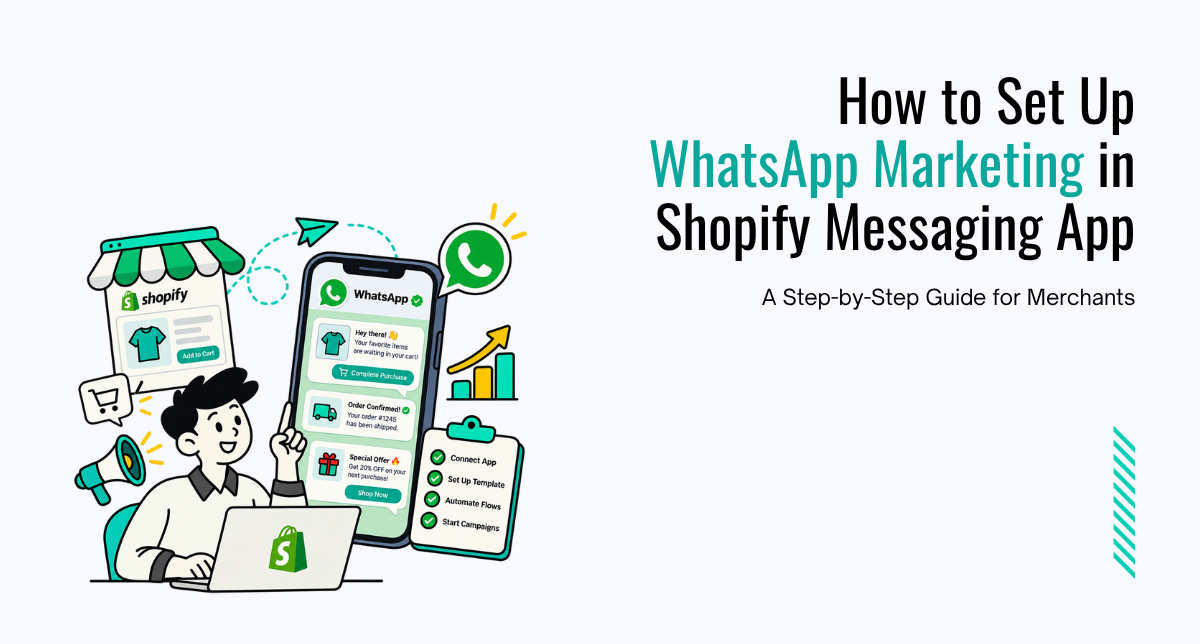

Introduction What if your store could reply to every customer instantly, recover abandoned carts,...
written by: Renuka M
Shopify Marketing,
WhatsApp Business,
WhatsApp Marketing Consent,
Shopify Forms,
Shopify WhatsApp Marketing
What Is Shopify WhatsApp Marketing?
WhatsApp is becoming an important marketing channel for Shopify merchants who want to communicate with customers in a more direct and conversational way.
With Shopify Forms, merchants can collect WhatsApp marketing consent directly from their storefront. That consent can be connected to the customer's Shopify profile and used for WhatsApp marketing campaigns through Shopify Messaging.
Instead of using one tool to collect phone numbers, another to store consent, and another to send campaigns, Shopify is bringing more of the WhatsApp marketing workflow into its own ecosystem.
The basic Shopify WhatsApp marketing flow is:
Shopify Forms → WhatsApp Consent → Shopify Messaging → WhatsApp Campaign
This makes it easier for merchants to build an opted-in WhatsApp subscriber list and manage customer communication from within Shopify.
What You Need Before Setting Up WhatsApp Marketing on Shopify
Before you start setting up WhatsApp marketing, make sure you have the required Shopify and Meta accounts ready.
- An eligible Shopify store
- Shopify Messaging installed
- Shopify Forms installed
- A Facebook or Meta Business account
- Your legal business name
- Your business category
- A phone number you want to use for WhatsApp
- A WhatsApp Business Account
Shopify connects merchants to a WhatsApp Business Account through Meta's embedded signup process. Merchants must also follow the applicable WhatsApp Business Solution Terms and WhatsApp Business Messaging Policy.
Step 1: Install Shopify Messaging
Start by installing Shopify Messaging on your Shopify store.
Shopify Messaging is Shopify's marketing application for managing supported communication channels such as email, SMS, and WhatsApp.
After installing the app:
- Open your Shopify Admin.
- Go to Apps.
- Open Messaging.
- Click Settings.
- Find the WhatsApp section.
This is where you'll connect and manage your WhatsApp Business Account.
Step 2: Connect WhatsApp to Shopify
Inside Shopify Messaging, go to:
Apps → Messaging → Settings → WhatsApp
Click Connect WhatsApp.
Shopify will ask whether you're setting up WhatsApp for the first time or switching an existing WhatsApp Business Account from another provider.
If You're New to WhatsApp Business
Select Set up a new WhatsApp account and click Continue.
Shopify will then take you through Meta's embedded WhatsApp Business setup process.
You'll normally need to:
- Sign in to your Facebook or Meta Business account.
- Enter your WhatsApp Business Account name.
- Select your business category.
- Configure your WhatsApp phone number.
- Add your WhatsApp Business display name.
- Complete phone-number verification when required.
- Finish the Meta setup.
After Meta confirms your WhatsApp connection, return to Shopify and click Continue to complete the setup.
Step 3: Choose Your WhatsApp Business Phone Number
During setup, you'll need to choose the phone number that will be associated with your WhatsApp Business Account.
Depending on your setup, you may be able to use:
- Your existing business phone number
- A phone number purchased from another provider
- A phone number offered during the WhatsApp setup process
If you're connecting your own phone number, you'll normally need to verify it using an SMS code or phone call.
In some cases, Meta may review your business information and WhatsApp display name before the account is fully ready to send messages.
Already Using WhatsApp With Another Provider?
If your WhatsApp Business Account is already connected to another provider, select the Switch from another provider option during setup.
Review your existing configuration before disconnecting anything because migrating an active WhatsApp Business Account can involve additional requirements.
Step 4: Install Shopify Forms
Once WhatsApp is connected, the next step is collecting customers who actually want to receive your WhatsApp marketing messages.
This is where Shopify Forms becomes important.
Go to:
Shopify Admin → Apps → Forms
Then click Create form.
Shopify Forms supports different ways of collecting subscribers, including popup and inline forms.
Popup Form
A popup form appears over your storefront while customers browse your website.
For example:
Get 10% Off – Sign Up for WhatsApp Updates
Popup forms can work well for discounts, promotions, new customer acquisition, and product announcements.
Inline Form
An inline form can be placed directly inside a Shopify page.
You might use one on:
- A newsletter page
- An offers page
- A product launch page
- A VIP signup page
- A dedicated WhatsApp signup landing page
Step 5: Add a Customer Phone Number Field
WhatsApp accounts are connected to phone numbers, so your Shopify form needs to collect the customer's phone number.
Inside the Shopify Forms editor, open the Fields section.
If a phone-number field isn't already present:
- Click Add new field.
- Select the phone-number field.
- Configure the field.
- Make it required if necessary.
- Click Done.
A simple Shopify WhatsApp signup form could look like this:
Get Special Offers on WhatsApp
First Name
Phone Number
☐ I agree to receive marketing messages through WhatsApp.
Subscribe
Keep your form as simple as possible. Asking for too much information can create unnecessary friction and reduce the number of people who complete the signup process.
Step 6: Enable WhatsApp Marketing Consent
This is one of the most important parts of the entire Shopify WhatsApp marketing setup.
Collecting a customer's phone number does not automatically give you permission to send WhatsApp marketing messages.
Inside Shopify Forms, find the Marketing consent settings.
Shopify Forms can support marketing consent across channels such as:
- SMS
Option 1: Subscribe When the Form Is Submitted
You can configure the form so that submitting it represents the customer's marketing signup, depending on your setup and applicable requirements.
Option 2: Use an Explicit Consent Checkbox
You can also display a checkbox that customers must select before they're subscribed to WhatsApp marketing.
For example:
☐ I agree to receive promotional messages, product updates, and offers from [Store Name] through WhatsApp.
An explicit checkbox makes the customer's decision clear and visible.
You can also include links to your privacy policy, terms, or other information explaining how customer data will be used.
The key rule is simple: don't send WhatsApp marketing messages to customers who haven't provided valid marketing consent.
Step 7: Customize Your Shopify WhatsApp Signup Form
Once the technical settings are ready, customize the form so it fits naturally with your Shopify store and brand.
You can customize elements such as:
- Form title
- Description
- Button text
- Customer fields
- Colors and styling
- Success message
- Discounts
- Customer tags
Example Form Title
Get Exclusive Deals on WhatsApp
Example Description
Be the first to know about new products, limited-time offers, and restocks.
Example CTA
Join on WhatsApp
Example Success Message
You're subscribed! Keep an eye on WhatsApp for our latest offers and updates.
You can also use a discount as an incentive for customers to subscribe.
For example:
Join our WhatsApp list and get 10% off your next order.
Step 8: Enable Shopify Forms on Your Theme
If you're using Shopify Forms for the first time, you may need to enable the Forms app embed on your theme.
Go to:
Online Store → Themes → Edit theme
Then:
- Open App embeds.
- Find Forms.
- Turn the toggle On.
- Click Save.
This allows Shopify Forms to display properly on your storefront, particularly when you're using popup forms.
Step 9: Preview and Activate Your WhatsApp Signup Form
Before activating the form, test the full customer experience.
Check:
- Desktop appearance
- Mobile appearance
- Phone-number field
- Marketing consent wording
- Consent checkbox
- CTA button
- Success message
- Discount code, if you're offering one
Try submitting the form yourself to make sure the entire signup experience works correctly.
When everything is ready, click Turn form on.
Your WhatsApp signup form will then become active on your Shopify storefront.
Step 10: Check WhatsApp Consent in Shopify Customers
One of the biggest benefits of Shopify's WhatsApp integration is that marketing preferences can remain connected to the customer's Shopify profile.
To review a customer's WhatsApp marketing status, go to:
Shopify Admin → Customers
Open the relevant customer profile and review their marketing preferences.
You can use Shopify customer information to understand whether someone has consented to supported marketing channels such as:
Email → SMS → WhatsApp
This creates a more unified customer view instead of forcing merchants to maintain completely separate subscriber databases for every marketing channel.
Step 11: Import Existing WhatsApp Subscribers
If you've already collected WhatsApp subscribers using another platform, you may be able to bring those subscribers into Shopify.
One possible approach is using a customer CSV that includes the customer's WhatsApp marketing consent information.
For example, the CSV can include a field such as:
Accepts WhatsApp Marketing
Only customers who have already provided valid WhatsApp marketing consent should be marked as subscribed.
Importing a customer's phone number does not automatically mean they've agreed to receive WhatsApp marketing messages.
Step 12: Create Your First Shopify WhatsApp Campaign
Once your WhatsApp Business Account is connected and you've started building an opted-in subscriber list, you can begin creating WhatsApp campaigns.
Shopify WhatsApp campaigns can be used for:
- Product launches
- Restock notifications
- Limited-time discounts
- New collection announcements
- Seasonal promotions
- VIP offers
- Flash sales
WhatsApp marketing messages generally use message templates that need to meet Meta's requirements and may require approval before they can be used in a campaign.
If you're preparing an important promotion or product launch, create your WhatsApp message template early so the approval process doesn't delay your campaign.
Can Customers Unsubscribe From Shopify WhatsApp Marketing?
Yes. Customers need a way to stop receiving promotional WhatsApp communication.
Shopify's WhatsApp marketing workflow can include unsubscribe instructions that allow customers to opt out of future messages.
For example, customers may be able to send:
STOP
to unsubscribe from future WhatsApp marketing messages.
Respecting unsubscribe requests is essential for maintaining customer trust and following WhatsApp marketing requirements.
Should You Verify Your Business With Meta?
Meta Business Verification might not always be required to begin your initial WhatsApp setup, but completing verification can become useful as your business grows.
Potential benefits can include:
- Greater business credibility
- Improved account trust
- Better messaging capacity as your account develops
- A more established Meta Business presence
Business verification is handled through your Meta Business account.
How to Use WhatsApp Keyword Replies in Shopify
Shopify Messaging can also support keyword-based WhatsApp replies.
This lets customers send a specific keyword and receive a predefined response.
Example 1: Discount Keyword
Keyword: DISCOUNT
Reply: Thanks for reaching out! Here's our current discount offer.
Example 2: Support Keyword
Keyword: SUPPORT
Reply: Thanks for contacting us. Our support team will get back to you shortly.
Keyword responses can make WhatsApp campaigns more interactive while reducing repetitive manual responses from your team.
Important Shopify WhatsApp Marketing Restrictions
WhatsApp marketing isn't an unrestricted promotional channel. Merchants need to understand several important requirements before launching campaigns.
Customers Must Opt In
Only send promotional WhatsApp messages to customers who have provided valid marketing consent.
New WhatsApp Accounts Can Have Sending Limits
New WhatsApp Business Accounts can initially have lower messaging limits. Those limits can change as an account builds trust and progresses through Meta's messaging requirements.
Availability Can Depend on Customer Region
WhatsApp marketing availability can vary depending on the customer's location and Shopify's current eligibility requirements.
Before sending campaigns to a large audience, review the latest Shopify and Meta WhatsApp marketing requirements for the countries where your customers are located.
How Does Shopify WhatsApp Marketing Work?
The complete Shopify WhatsApp marketing process looks like this:
Customer visits your Shopify store
↓
Shopify Forms displays your WhatsApp signup form
↓
Customer enters their phone number
↓
Customer provides WhatsApp marketing consent
↓
Consent is stored with the Shopify customer
↓
Customer becomes an eligible WhatsApp marketing subscriber
↓
You create a WhatsApp marketing campaign
↓
The required message template is approved
↓
Your campaign is sent to eligible WhatsApp subscribers
This connected workflow is one of the biggest advantages of Shopify's WhatsApp marketing setup because subscriber acquisition, consent management, and marketing communication can stay closely connected.
Benefits of WhatsApp Marketing for Shopify Merchants
More Direct Customer Communication
WhatsApp allows merchants to reach customers through an app many people already use throughout the day.
Faster Product Updates
Merchants can use WhatsApp to inform subscribers about restocks, new launches, discounts, limited inventory, and important promotions.
Unified Customer Marketing Preferences
WhatsApp marketing consent can stay connected to customer information inside Shopify, helping merchants maintain a clearer view of each customer's communication preferences.
Better Subscriber Management
Shopify Forms provides a structured way to collect customer phone numbers and WhatsApp marketing consent instead of relying on unconnected spreadsheets or external signup forms.
Multi-Channel Marketing
WhatsApp doesn't need to replace your existing marketing channels.
It can work alongside:
- Email marketing
- SMS marketing
- Social media marketing
- Shopify customer campaigns
Shopify WhatsApp Marketing Best Practices
Setting up WhatsApp is only the beginning. How you use the channel has a major impact on whether customers stay subscribed.
Get Clear Customer Consent
Make sure customers understand that they're subscribing to WhatsApp marketing and what type of communication they may receive.
Don't Send Too Many Messages
WhatsApp is a highly personal communication channel. Sending too many promotional messages can quickly cause customers to unsubscribe.
Send Messages That Provide Value
Good WhatsApp campaigns can include:
- Exclusive discounts
- Useful restock alerts
- Early product access
- Relevant product launches
- Limited-time promotions
Keep WhatsApp Messages Short
Customers usually read WhatsApp messages quickly, so keep your copy concise and make the main offer easy to understand.
Use Clear Calls to Action
Your WhatsApp message should make the next step obvious.
Examples include:
Shop Now
View Collection
Claim Your Discount
See What's Back in Stock
Frequently Asked Questions About Shopify WhatsApp Marketing
Can Shopify Send WhatsApp Marketing Messages?
Yes. Eligible Shopify merchants can connect a WhatsApp Business Account and use supported Shopify marketing tools to send WhatsApp campaigns to customers who have provided valid marketing consent.
How Do I Collect WhatsApp Subscribers on Shopify?
You can use Shopify Forms to collect a customer's phone number and WhatsApp marketing consent through popup or inline forms on your Shopify store.
Do Customers Need to Opt In to WhatsApp Marketing?
Yes. Customers should provide valid consent before receiving promotional WhatsApp communication. Simply having their phone number doesn't automatically give you permission to send marketing messages.
Can I Collect WhatsApp Consent Using Shopify Forms?
Yes. Shopify Forms can be used to collect WhatsApp marketing consent alongside supported marketing channels such as email and SMS.
Can I Import Existing WhatsApp Subscribers Into Shopify?
Existing subscribers may be imported, but only customers who previously provided valid WhatsApp marketing consent should be marked as subscribed.
Can I Use My Existing Phone Number for Shopify WhatsApp Marketing?
Depending on your Meta and WhatsApp Business setup, you may be able to connect an existing eligible business phone number. The number may need to be verified during setup.
Can I Use WhatsApp for Shopify Restock Notifications?
Yes. Restock announcements are one useful type of WhatsApp campaign for Shopify merchants, provided customers have opted in to receive WhatsApp marketing communication.
Do WhatsApp Message Templates Need Approval?
WhatsApp marketing campaigns generally use message templates that need to meet Meta's requirements and may need approval before they're used.
Where Is WhatsApp Marketing Consent Stored in Shopify?
WhatsApp marketing consent can be associated with the customer's Shopify profile and managed alongside their other marketing preferences.
The Short Version
Shopify WhatsApp marketing allows merchants to collect opted-in WhatsApp subscribers using Shopify Forms, store their marketing consent with customer information, and create supported campaigns through Shopify Messaging and WhatsApp Business.
The complete process is:
Connect WhatsApp → Create a Shopify Form → Collect phone numbers → Capture WhatsApp consent → Build your subscriber list → Create campaigns → Send relevant WhatsApp messages
Final Thoughts
WhatsApp marketing on Shopify is becoming easier to manage because more of the workflow can stay connected inside the Shopify ecosystem.
Previously, merchants often needed one tool to collect phone numbers, another platform to store marketing consent, and another service to send WhatsApp campaigns.
With Shopify Forms + Shopify Messaging + WhatsApp Business, merchants can create a more unified process:
Collect subscribers → Store consent → Create campaigns → Send through WhatsApp
The real opportunity isn't simply collecting more customer phone numbers. It's building a high-quality list of customers who actually want to receive messages from your brand.
Focus on getting clear consent, keeping your messages relevant, limiting unnecessary promotions, and giving customers a genuine reason to stay subscribed.
When used thoughtfully, WhatsApp can become a valuable part of your Shopify marketing strategy for sharing product launches, restocks, offers, and important customer updates through a communication channel people already use every day.