-1.png?width=134&height=66&name=amwhiz-logo%20(1)-1.png)




HubSpot’s Latest Workflow Enhancements for Complex Automation As businesses grow, so do their...
10 HubSpot Automation Ideas That Save Teams Hours Every Week
Your sales team spends 5 hours per week on manual data entry. Your marketing team manually tracks which leads engaged with emails. Your customer success team creates service tickets without automation. Support receives the same questions repeatedly with no automated responses.
These hours add up. Multiply by your team size. That's hundreds of hours annually spent on repetitive work that could be automated.
HubSpot workflows eliminate this waste. They automate routine tasks. They route work to the right person instantly. They trigger timely communications. They keep data clean without human intervention. Your team focuses on high value work instead of repetitive tasks.
Why HubSpot Automation Transforms Your Business
Manual processes have three problems: they're slow, they're error prone, and they don't scale. When your business grows, manual processes become bottlenecks. You need more people just to handle the volume.
Automation flips the equation. The first workflow takes time to set up. But then it runs 1,000 times without additional effort. Every additional record triggers the same workflow with zero additional time investment.
Result: Your team handles 5x more volume with the same headcount. Quality improves because automations follow consistent rules. Compliance improves because automations enforce policies uniformly.
10 HubSpot Automation Ideas Your Team Should Implement Now
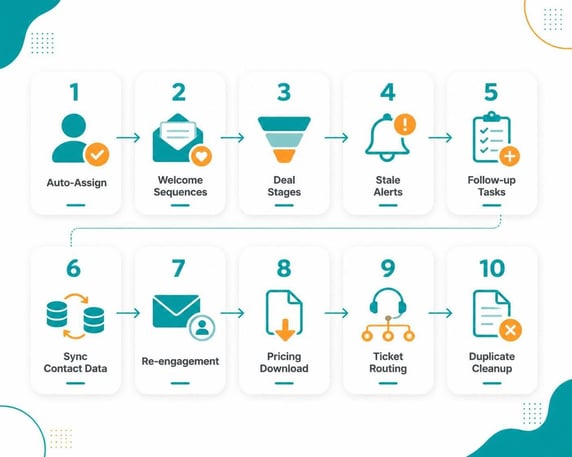
1. Auto-Assign Leads Based on Territory or Skill
When a new lead signs up, automatically assign them to the right sales rep based on territory, industry, or deal size. No manual assignment. No leads falling through the cracks. No reps fighting over good leads.
Setup: Create a workflow triggered on lead creation. Use conditional logic: if lead company is in "Northeast," assign to Northeast team. If lead company revenue exceeds $1M, assign to enterprise team. The workflow handles it instantly.
2. Send Automated Welcome Sequences to New Contacts
A new contact joins your database. Automatically send a welcome email series. Day 1: welcome message. Day 3: introduction to your product. Day 7: case study relevant to their industry. Nurture starts immediately without manual effort.
Setup: Create a workflow triggered on contact creation. Add a delay action (1 day). Send email. Add another delay (2 days). Send second email. Continue the sequence. The workflow handles timing automatically.
3. Update Deal Stage Based on Activity
Sales reps forget to update deal stage. Deals stay "Discovery" for months even though conversation should have moved to negotiation. Automation moves deals forward when specific activities occur.
Setup: Create a workflow triggered when a deal call is logged and notes mention "pricing" or "contract". Automatically move deal to negotiation stage. Sales reps still own the deal, but status stays current.
4. Alert Managers When Deals Go Stale
A deal has no activity for 30 days. The sales rep might have forgotten about it. A manager should nudge them. Automation flags stale opportunities.
Setup: Create a workflow triggered when no activity occurs on a deal for 30 days. Send an alert to the deal owner's manager. Include deal details and suggest next steps. The workflow reminds people to follow up.
5. Auto-Create Tasks for Follow Up Activities
After a demo, the sales rep needs to follow up within 2 days. Instead of relying on the rep to remember, automation creates a task automatically.
Setup: Create a workflow triggered when a deal activity "demo" is logged. Immediately create a task for the deal owner: "Follow up on demo with [prospect name]." Due date: 2 days from now. The task appears in their HubSpot to do list.
6. Update Contact Information Automatically From Company Data
A sales rep adds a contact but doesn't fill in company size, industry, or revenue. This data exists on the Company record but is missing on the Contact. Automation fills gaps.
Setup: Create a workflow triggered when a contact is created or updated. Use an "Update Contact Properties" action. Pull company industry into contact industry field. Pull company size into contact company size field. One workflow, consistent data across records.
7. Send Automated Re-Engagement Campaigns to Inactive Contacts
You have 10,000 contacts who haven't opened an email in 6 months. Manually identifying them and sending a re-engagement campaign is tedious. Automation does it.
Setup: Create a workflow triggered on a schedule (weekly). Find all contacts with "last email open date" more than 6 months ago. Send them a "we miss you" email. Include an unsubscribe option for those who no longer want communications.
8. Notify Sales When a Contact Downloads Pricing Guide
A contact from a high value account downloads your pricing guide. That's buying signal. Sales should contact them immediately. Without automation, the download might go unnoticed for days.
Setup: Create a workflow triggered when a contact downloads the pricing guide asset. Check: is this contact's company in your target account list? If yes, create an alert to their assigned sales rep. Include a note: "Contact downloaded pricing material. Follow up immediately."
9. Auto Categorize Inbound Support Tickets
A customer emails support with a billing question. The ticket could be routed to accounting. A technical question should go to the engineering team. Manual routing is slow. Automation categorizes and routes instantly.
Setup: Create a workflow triggered when a support ticket is created. Use conditional logic: if ticket contains keywords "billing," "invoice," or "payment," set ticket type to "billing" and assign to accounting. If ticket contains keywords "bug," "error," or "not working," set to "technical" and assign to engineering.
10. Delete or Archive Duplicate Contact Records Automatically
A contact gets added to your database three times under slightly different names. Duplicates create chaos. Reporting breaks. Emails go out multiple times. Manual deduplication is tedious. Automation prevents the problem.
Setup: Create a workflow triggered on contact creation. Check if a contact with the same email already exists. If yes, merge them automatically or mark the duplicate as "do not use." This prevents duplicate records from accumulating.
Building Automations That Stick
Rule 1: Start Simple
Your first automation should be straightforward. Assign leads. Send a welcome email. Flag stale deals. Something that takes 30 minutes to set up and saves hours weekly. Success builds momentum.
Rule 2: Test Before You Launch
Use test data. Does the workflow trigger correctly? Does it perform the right action? Does it handle edge cases? Test thoroughly before turning it on for all contacts.
Rule 3: Monitor and Adjust
After launching, check the workflow weekly. Is it performing correctly? Is it catching the cases you wanted? Are there exceptions you didn't anticipate? Fine tune based on what you learn.
Rule 4: Document the Automation
Why does this workflow exist? What triggers it? What does it do? Document it so other team members understand. When someone new joins, they can learn from documentation.
Common Automation Mistakes to Avoid
Too Much Logic in One Workflow
A workflow with 20 branches and 50 actions becomes unmanageable. If something breaks, you can't figure out why. Build simple workflows. Use multiple workflows together if needed. Simple is better than complex.
Automating the Wrong Thing
You automate something that rarely happens. Or something that requires human judgment. Automate repetitive, predictable tasks. Don't automate decisions that need human review.
Launching Without User Training
You build an automation that sends alerts to sales reps. But you don't tell them the alerts are coming. They ignore them or get annoyed. Train users before launching automations that affect them.
Never Reviewing Automation Performance
You launch a workflow and forget about it. Maybe it has 10% failure rate. Maybe it's triggering on wrong records. Review workflows monthly. Fix problems quickly.
Measuring Automation Impact
Time Saved
How many hours per week did this automation save? Multiply by hourly cost. That's the value of the automation. Even simple automations save significant time.
Quality Improvements
Do deals stay updated more consistently? Are leads assigned faster? Is customer data cleaner? Automation improves data quality.
Compliance
Does automation enforce policies consistently? Are all follow up tasks created? Automation improves compliance and reduces risk.
FAQ About HubSpot Automations
How many workflows should I create?
Start with 3 to 5 core workflows addressing your biggest bottlenecks. Run them for a month. Measure impact. Then add more. Trying to automate everything at once becomes overwhelming. Effective automation grows gradually. Each workflow should address a real pain point that's costing your team time or quality. Prioritize workflows with highest impact relative to setup time. A workflow that saves 5 hours per week is worth more than one that saves 30 minutes. Build momentum with early wins. Once your team sees workflows working well, they'll suggest more automations to create. You'll naturally grow to 10 to 15 core workflows over time without feeling overwhelmed.
Can I schedule workflows to run at specific times?
Yes. Workflows can trigger on specific days or times. You can create a workflow that runs every Monday morning to identify stale deals. Or every Friday to send a weekly customer success check in email. Schedule based on your business rhythm. Just remember: time zone matters. If you have teams in multiple time zones, consider their local time when scheduling workflows. HubSpot accounts have a default time zone. Workflows run in that time zone unless you specify otherwise. Test timing before relying on it for important communications.
What if an automation makes a mistake?
This happens. Maybe the workflow assigned a lead to the wrong person. Or sent an email to the wrong contact. Your action should be: pause the workflow immediately, identify what went wrong, fix it, test with sample data, and relaunch. The good news is that mistakes usually affect a small portion of records. Review the affected records, make corrections, and move on. This is why testing is critical. Most automation mistakes are preventable with thorough testing. However, some edge cases only show up in production. When they do, fix quickly and learn.
Can workflows work across objects?
Yes, absolutely. A workflow can be triggered on a Contact but take actions on the Company record. Or triggered on a Deal but create a task on the Contact. Workflows work across objects, which makes them powerful. You can link data across your entire CRM. Just make sure the relationship exists between objects. If you try to trigger an action on a Company from a Contact workflow but they're not connected, the workflow will error.
Should I use workflows or automation rules?
HubSpot has both workflows and automation rules. Use workflows for complex logic. Use automation rules for simple, immediate actions. Automation rules trigger instantly when a condition is met. Workflows allow delays, branches, and multi-step sequences. For most use cases, workflows are more flexible. Start with workflows unless you need instant-only actions.
How do I prevent workflow loops?
A loop occurs when a workflow action triggers the same workflow again. Example: a workflow updates a property, which causes the same workflow to trigger again, which updates the property again, infinitely. Prevent loops by: using "only once per object" settings, making sure your trigger conditions don't re-trigger themselves, or adding a flag property to mark records the workflow has processed. Most loops are easy to prevent with thoughtful design.
Can I automate email sends to large lists?
Yes. Workflows can send emails to thousands of contacts based on conditions. HubSpot handles the volume without problems. Just remember: large email sends have deliverability implications. If you send 10,000 emails at once and get lots of bounces, your sender reputation suffers. Best practice: stagger sends. Use workflow delays. Send to 1,000 contacts today, 1,000 more tomorrow. This looks more natural and improves deliverability.
What's the limit on workflow actions?
Technically unlimited, but practically workflows with more than 20 to 30 actions become hard to manage and debug. Keep actions focused. If a workflow gets too complex, break it into two separate workflows. Workflow 1 qualifies leads. Workflow 2 sends them the welcome sequence. Simple workflows are easier to troubleshoot and maintain.
Can I duplicate existing workflows?
Yes. HubSpot lets you clone workflows. Useful when you want to create a similar workflow for a different audience. Clone the working workflow, modify the trigger and conditions for the new audience, test, and launch. Much faster than building from scratch. Good practice: build one workflow thoroughly, test it well, then clone it for variations.
How often should I review workflows?
Monthly minimum. Set a calendar reminder to review workflows. Check: are they triggering correctly? Are actions executing as intended? Are there errors or failed actions? Do any workflows need adjustment based on business changes? If something breaks, fix immediately. Small issues become big problems if ignored.
Ready to Automate Your HubSpot Workflows?
Automation transforms how your teams work. Manual tasks disappear. Your team focuses on high value work. Efficiency soars. Quality improves. Growth accelerates.
At Amwhiz, we're a HubSpot Diamond Solution Partner specializing in workflow automation that drives real results.
Book a HubSpot consultation with Amwhiz today. We'll audit your current processes and identify the automations that will save your team the most time.