-1.png?width=134&height=66&name=amwhiz-logo%20(1)-1.png)


How HubSpot’s Smart CRM Associations Improve Data Management As businesses grow, customer...
written by: Renuka M
HubSpot CRM,
complex-business-processes,
hubspot-architecture,
relationship-mapping,
project-management-crm,
crm-data-model,
crm-customization,
hubspot-best-practices,
subscription-tracking,
data-structure
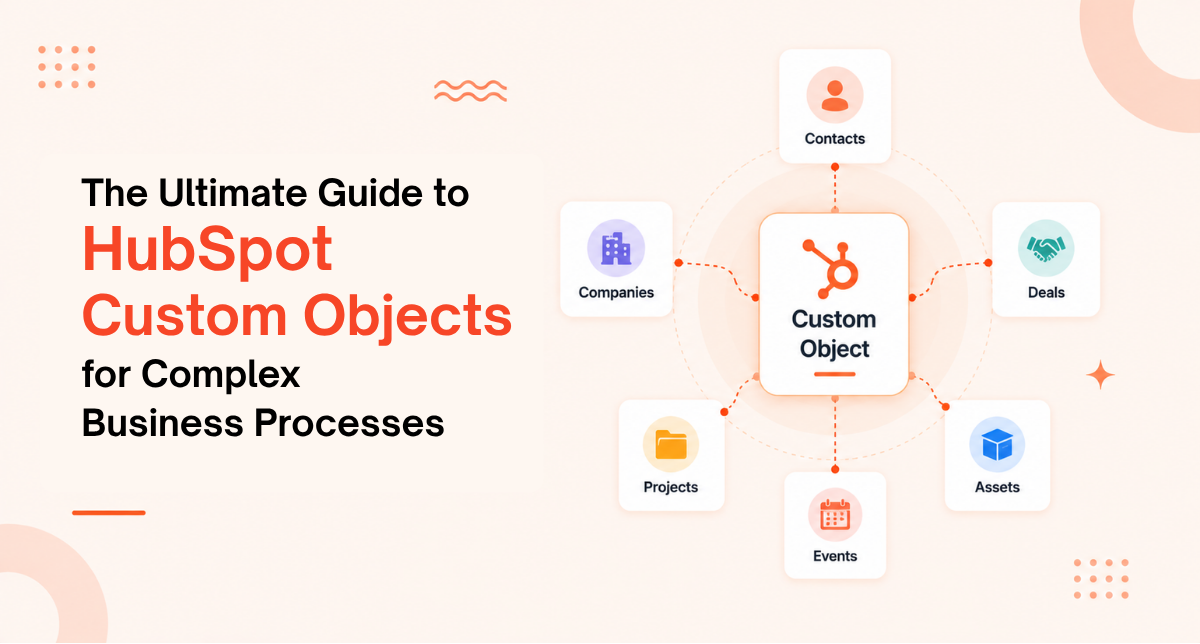
The Ultimate Guide to HubSpot Custom Objects for Complex Business Processes
HubSpot comes with standard objects: Contacts, Companies, Deals. They work for simple businesses. But if your business is more complex, standard objects don't fit.
Maybe you sell projects and need to track each project separately. Maybe you have contracts that span multiple deals. Maybe you offer subscriptions and need to track each subscription independently. Maybe you manage cases and need visibility into which customer has which cases.
HubSpot custom objects solve this. They let you model your business exactly as it actually works. No forcing square pegs into round holes. Your data model matches your reality.
Why Custom Objects Are Game Changing for Complex Business
Standard objects have limitations. A Deal can only belong to one company. A Contact can only have one job title. What if a contact has multiple roles at the same company? What if you need to track multiple projects within a single deal?
Custom objects remove these constraints. Create a Projects object. Each project belongs to a company. Each project has multiple contacts involved. Each project has its own timeline, budget, status. Now your CRM matches how you actually work.
The Problem With Forcing Data Into Standard Objects
A services company tries to use Deals for projects. But a deal has a close date. A project can have a long implementation timeline separate from the deal close. So they create a custom property "Project Start Date" on the Deal object.
Then they realize one deal can spawn multiple projects. Now what? Can't put it on the Deal. They're stuck using workarounds. Spreadsheets. Manual tracking. Broken automations.
Custom Objects solve this. One Project object. One Deal can relate to many Projects. Clean. Simple. Scalable.
When You Need Custom Objects
You're a Service Business
You sell projects, not products. Each project is unique. Each project has multiple phases, multiple team members, multiple deliverables. A Deals object doesn't capture this. A Projects custom object does.
You Have Subscriptions
You sell recurring subscriptions. A Deal represents the initial sale. But the subscription continues. You need to track subscription status, renewal date, upsell opportunities, churn risk. A Subscriptions custom object tracks all this.
You Manage Support Cases or Issues
A company creates multiple support tickets or cases per customer. Each case has its own status, priority, resolution. You can't track this on the Contact object. A Cases or Support Tickets custom object handles it.
You Track Contracts Separately From Sales
A contract might be signed before a deal closes. A contract might cover multiple products sold over time. A contract has its own lifecycle separate from sales. A Contracts custom object tracks this independently.
You Have Multi Level Customers
You have enterprise accounts with multiple divisions. Each division is a separate customer with its own revenue. You need a Divisions or Business Units custom object.
How Custom Objects Work in HubSpot
You Define the Object
Create a new object. Give it a name (Projects, Subscriptions, Cases, Contracts). Define what it represents. Decide if multiple records can be created (yes for Projects, maybe for Contracts).
You Add Properties
Each object has properties. A Projects object might have: Project Name, Project Status, Start Date, End Date, Budget, Team Lead, Scope of Work, etc.
You Create Relationships
Link the custom object to standard objects. A Project relates to a Company. A Project relates to multiple Contacts. A Project relates to a Deal. These relationships enable data to flow and reports to work.
You Automate With Workflows
Create workflows that trigger on custom objects. When a Project is created, notify the project manager. When a Project status changes to complete, send a survey to the customer. Automations work across custom objects just like standard objects.
You Report On Custom Objects
Create reports showing projects by status, by customer, by revenue. HubSpot's reporting engine works with custom objects. You can combine data across standard and custom objects.
Common Custom Objects and How to Use Them
Projects Custom Object
For service businesses. Tracks each project separately from deals. Properties: Project Name, Status, Start Date, End Date, Budget, Team Members, Deliverables, Client Stakeholders. Relationships: Connected to Company and Deal.
Use cases: Professional services, agencies, consulting, development shops.
Subscriptions Custom Object
For SaaS and subscription businesses. Tracks recurring revenue separately from initial deal. Properties: Subscription Name, MRR (Monthly Recurring Revenue), Renewal Date, Status, Plan Level, Number of Seats, Churn Risk. Relationships: Connected to Deal and Contact.
Use cases: SaaS companies, subscription box services, membership businesses.
Cases or Tickets Custom Object
For support heavy businesses. Tracks support requests independently from the customer record. Properties: Case Number, Status, Priority, Description, Assigned To, Created Date, Closed Date, Resolution Time. Relationships: Connected to Contact and Company.
Use cases: Healthcare, financial services, B2B SaaS with heavy support needs.
Contracts Custom Object
For contract heavy businesses. Tracks contracts independently from deals. Properties: Contract Name, Value, Start Date, End Date, Status, Renewal Date, Renewal Value. Relationships: Connected to Deal, Company, and multiple Contacts.
Use cases: Enterprise sales, managed services, licensing businesses.
Opportunities or Pipeline Custom Object
For complex sales with multiple opportunities per account. Properties: Opportunity Name, Value, Status, Decision Timeline, Key Decision Makers. Relationships: Connected to Account or Company and multiple Contacts.
Use cases: Enterprise software, complex B2B sales, accounts with multiple concurrent opportunities.
Building Custom Objects That Scale
Rule 1: Define Clear Purpose
Every custom object should answer a clear business question. "How many active projects do we have?" or "What's our total recurring revenue?" or "How many support cases are unresolved?". If you can't articulate why the object exists, don't create it.
Rule 2: Keep It Simple
Don't create one massive custom object with 100 properties. Create focused objects with 10-20 core properties. You can always add properties later. Better to start simple and expand than to create bloated objects.
Rule 3: Establish Clear Relationships
Custom objects are powerful because they relate to standard objects and each other. A Project relates to a Company. A Project relates to a Deal. A Project can relate to multiple Contacts. These relationships enable automations and reporting.
Rule 4: Document Everything
Why does this object exist? What does each property mean? How does it relate to other objects? What happens when you create or delete records? Documentation prevents confusion when new team members join.
Rule 5: Plan for Growth
How many records will this object have? Could you have thousands? Millions? HubSpot can handle it, but you need clean data and good governance. Plan for scale from day one.
Common Mistakes With Custom Objects
Creating Too Many Objects
You can create unlimited custom objects. So some companies create one for every use case. Then managing relationships becomes impossible. Fewer, better designed objects are better than many poorly designed ones.
Putting Data in Wrong Objects
A company creates a Projects object with a "Customer Name" property. But Customer Name belongs on the Company object, not the Projects object. Redundant data that gets out of sync.
Missing Relationships
You create a Subscriptions object but don't relate it to Deals or Contacts. Now you can't see which deal created which subscription. Reports can't join the data.
Inconsistent Naming
One custom object is called "Project" and another is called "Projects". One property is "start_date" and another is "StartDate". Inconsistency confuses users and breaks automations.
Not Planning Integrations
You create a custom object without thinking about external systems. Then you want to integrate with your accounting system and realize the data structure doesn't align.
Setting Up Custom Objects the Right Way
Step 1: Identify What's Missing From Standard Objects
What information can't you track with Contacts, Companies, and Deals? Write it down. Be specific.
Step 2: Define the Object
What is this object? What does it represent? How does it relate to your business? Can you have multiple records? (Probably yes.)
Step 3: List Essential Properties
What information must you track? Start with 10 to 15 core properties. You can add more later. Don't try to capture everything from day one.
Step 4: Map Relationships
How does this object relate to Companies? To Contacts? To Deals? To other custom objects? Draw it out. Make the relationships explicit.
Step 5: Create and Test
Create the object in HubSpot. Add test data. Test relationships. Test workflows. Make sure everything connects properly before launching with real data.
Step 6: Build Automations
What automations will run on this object? When someone creates a project, notify the project manager. When a subscription is created, send an onboarding email. Build those workflows.
Step 7: Train and Document
Train your teams on the new object. Explain what it does. Explain how to use it. Document everything. Then document it again.
FAQ About HubSpot Custom Objects
How many custom objects can I create?
Technically unlimited, but practically most businesses need 0 to 3. Creating too many becomes very difficult to manage. Each custom object adds complexity to your architecture. More than 3 to 4 custom objects usually signals that you need to rethink your approach. Focus on objects that directly support revenue generating processes or critical business functions. You can always add more later as your business evolves, but starting lean prevents architectural complexity.
Think of each custom object as a commitment to manage that entity throughout its lifecycle. Before creating a new one, ask: would using a standard object plus custom properties be sufficient? If the answer is yes, avoid the custom object. Only create when standard objects genuinely cannot accommodate your business model. This conservative approach keeps your architecture manageable and scalable as you grow.
Can a custom object belong to multiple companies?
Yes, custom objects are flexible about relationships. A Project can belong to a single Company, meaning you create the relationship once per project record. However, you can also design custom objects to relate to multiple companies if your business requires it. For instance, if you have joint ventures or partnerships where a project involves multiple companies, you can model that through the relationships. The key is thinking through your business model upfront.
Most projects belong to one company, one subscription belongs to one company. But if you have scenarios where one project serves multiple companies, HubSpot supports that. You just need to set up the relationship to allow for multiple company associations. This flexibility is one of the powerful aspects of custom objects: they adapt to your business model rather than forcing you into a standard structure. Just make sure your data entry process and workflows support whatever relationship model you choose, or you'll end up with inconsistent data.
Can I have a custom object with no Company relationship?
Technically yes, but it's unusual and not recommended for most businesses. An orphaned custom object with no relationships to standard objects essentially becomes a data silo. It exists in isolation, unable to connect with the rest of your CRM. This prevents the unified view that makes CRMs valuable. For example, if you have an Issues custom object with no relationship to contacts or companies, you can't see which customer has which issues.
You can't report on issues by customer. Automations can't trigger based on customer context. You lose most of the power of having that object in HubSpot. That said, there are rare cases where an isolated custom object makes sense. Maybe you're tracking internal resources or assets that don't directly relate to customers. But even then, you usually want some connection. Best practice: every custom object should relate to at least one standard object, and preferably to company and contact. This ensures your data is integrated and your CRM provides that 360 degree customer view that makes it valuable.
Can I delete a custom object after I create it?
Yes, you can delete a custom object in HubSpot, but it's risky and not recommended if you have data in it. Deleting an object removes all its records permanently. If you have historical data, you lose it forever, and you may have lost visibility into important business information. For example, if you delete a Projects custom object, you lose all project history, which impacts any reporting or analysis dependent on that data. More importantly, deleting objects can break automations and integrations that reference them. Instead of deleting, consider archiving.
Mark records as inactive or create a backup before deletion. If you truly want to get rid of the object, first migrate any important data to another location or export it for records. Only then delete. In most cases, better approach is to keep the object even if you're not actively using it, just disable automated workflows that reference it. This preserves historical data integrity without the risk of accidental data loss.
Can I change a custom object's name after creation?
Yes, you can rename a custom object in HubSpot, but proceed carefully. Renaming affects everything that references that object. If you have automations, integrations, or reports that use the object name, renaming can break them. For instance, if an integration syncs to a "Projects" object and you rename it to "Project", the integration might need reconfiguration. Similarly, workflows might stop working if they reference the old name.
HubSpot usually handles simple renames gracefully, but it's not guaranteed. Best practice: if you need to rename, do it early before you have many automations and integrations in place. Test thoroughly after renaming. Check all your workflows, integrations, and reports to ensure they still reference the correct object. Document the rename so team members know the object has been renamed. In general, try to get the name right from the start so you avoid this complexity. Think carefully about naming conventions before creating objects.
What's the limit on properties per custom object?
Technically you can have many properties on a custom object. Practically, you should keep it between 10 to 50 core properties. Too many properties becomes unwieldy. Your team gets confused about what each property means. Performance can degrade. Reports become too complex. You end up with properties that nobody uses. Better approach: start with 10 to 15 core properties that directly support your business.
These are properties you track consistently and use regularly in automations and reports. As you discover you need more information, add properties gradually. Document each property as you add it so your team understands its purpose. Annual audits should identify unused properties: remove them. This keeps your object focused and manageable. Unused properties create noise and confusion. Plus every property you have requires governance and maintenance. Fewer, well used properties are better than many rarely used ones. Think quality over quantity.
Can workflows trigger on custom objects?
Yes, absolutely. Workflows work with custom objects exactly like they work with standard objects. When a custom object is created, updated, or meets certain conditions, workflows can trigger. For example: When a Project is created, trigger a workflow to notify the project manager. When a Project status changes to "complete", trigger a workflow to send a survey. When a Subscription renewal date is within 30 days, trigger a workflow to notify customer success. This is one of the most powerful features of custom objects: they integrate fully with HubSpot's automation engine.
You get the same conditional logic, multiple step sequences, and integrations with external systems. This means custom objects don't just store data; they enable sophisticated automation. You can use them as the starting point for complex workflows that span multiple objects, send communications, update fields, and integrate with external systems. This full integration with HubSpot's workflow engine is why custom objects are so transformative for complex businesses.
How do I handle multiple custom objects that relate to each other?
Relationships between custom objects follow the same rules as relationships to standard objects. A Project can relate to a Contract. A Subscription can relate to multiple Projects. Design these relationships carefully upfront. Document them clearly. The relationships enable powerful reporting and automation across multiple objects. However, too many interdependent objects creates complexity. Keep your architecture as flat as possible.
Aim for most objects relating back to Company or Contact rather than creating deep nesting. Example: Good is Projects relates to Company. Projects relates to Contracts. Avoid: Projects relates to Contracts relates to Agreements relates to Tasks, etc. Flatter architectures are easier to manage, report on, and automate.
Should I use custom objects or custom properties?
This is a critical question. Use a custom property if: you need to track one piece of information per Contact or Company. Example: "Company Size" or "Annual Budget". Use a custom object if: you need to track multiple records for that entity. Example: if a Company has 5 different Projects, you need a Projects object, not 5 "Project" properties on the Company. Custom properties are one to one. Custom objects are one to many or many to many. Custom properties are simpler to manage. Custom objects are more powerful but add complexity. Always ask: "Am I tracking one value per entity or multiple values?" If multiple, use custom objects.
Can I export data from custom objects?
Yes. HubSpot lets you export custom object data just like standard object data. Go to the custom object view, select records, export to CSV or integrate directly with external tools. Exporting is straightforward. The bigger question is whether you need to. Many companies export custom object data to synchronize with external systems. Use integrations where possible. They're more reliable than manual exports. But HubSpot supports both approaches, so you have flexibility.
What happens to custom object records if I delete a Company?
This depends on how you set up the relationship. If a Project relates to a Company with a strict relationship, deleting the Company may delete or orphan the Projects depending on your settings. This is why documentation and planning matter upfront. Know what happens when parent records get deleted. Test before going live with important data. In most cases, you'll want to prevent deletion of Companies that have related custom objects, or archive rather than delete them. Plan your deletion policies carefully to avoid unexpected data loss.
Ready to Implement HubSpot Custom Objects?
Custom objects transform your CRM from a contact management system into a true business platform. Your data model matches your business model. Automations become more powerful. Reporting becomes richer. Teams have better visibility.
At Amwhiz, we're a HubSpot Diamond Solution Partner specializing in custom object architecture for complex businesses.
Book a HubSpot consultation with Amwhiz today. We'll audit your data structure and design custom objects that scale with your business.