
EDITOR – MERGE: This topic overlaps an existing published post: /blog/hubspot-implementation-checklist (published: HubSpot Implementation Checklist for Businesses Moving to a Modern CRM). Recommended: move the best sections of this draft into the existing post (keep its URL), then delete this draft. Do not publish both.
A HubSpot implementation has eight phases: discovery, portal setup, data model, data migration, sales and marketing configuration, integrations, reporting, and training with go-live. This 40-step checklist is the same order we follow on client projects. Most single-hub setups finish in 3 to 6 weeks; multi-hub projects take 6 to 12.
Key takeaways
- Decide your data model (objects, properties, lifecycle stages) before importing anything.
- Clean data before migration. Importing duplicates into HubSpot is harder to fix later.
- Build pipelines and workflows around your real sales process, not HubSpot defaults.
- Set up reporting early so you can check adoption from week one.
- Train by role and keep a support window open for 30 days after go-live.
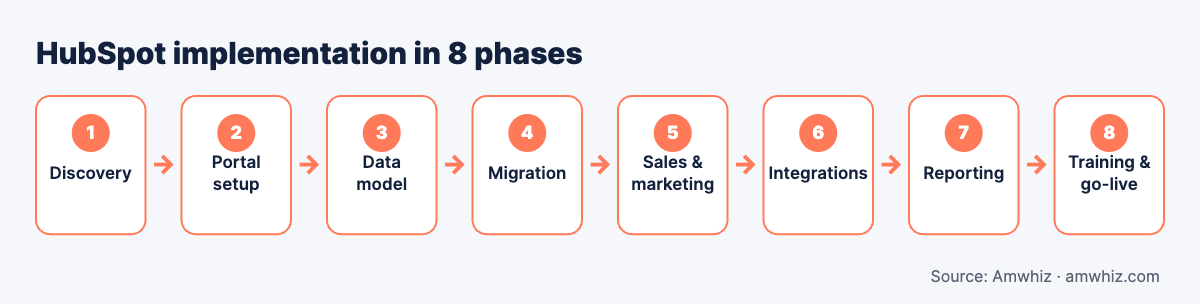
HubSpot implementation in 8 phases.
Phase 1: Discovery and planning (steps 1–5)
- Define goals. Write down three measurable outcomes, such as "every inbound lead contacted within 1 hour" or "pipeline forecast in one dashboard".
- Map current processes. Document how leads arrive, who qualifies them, how deals move and how handover to delivery or support works.
- List data sources. Old CRM, spreadsheets, email tools, accounting software, website forms, ecommerce store.
- Confirm hubs and editions. Match features you need to Starter, Professional or Enterprise. See HubSpot pricing 2026 for seat and credit costs.
- Assign owners. Name a HubSpot admin, a sales owner, a marketing owner and an executive sponsor.
Phase 2: Portal setup (steps 6–10)
- Account defaults: company name, time zone, currency, fiscal year, date format.
- Users and teams: invite users, create teams by region or function.
- Permission sets: restrict who can export, delete or edit properties.
- Domain and email: connect your website domain, set up email sending domain authentication (SPF, DKIM, DMARC).
- Tracking code: install on every website page and confirm in HubSpot.
Phase 3: Data model (steps 11–16)
- Lifecycle stages: define what Subscriber, Lead, MQL, SQL, Opportunity and Customer mean for your business.
- Lead status: add values your sales team actually uses (New, Attempting, Connected, Qualified, Unqualified).
- Custom properties: create only what you'll report on or automate with. Use dropdowns over free text.
- Property groups: organise properties so reps can find them.
- Associations: decide how contacts, companies, deals and tickets link, including association labels.
- Custom objects (Enterprise): add if you track things like projects, assets, subscriptions or dealers.
Phase 4: Data migration (steps 17–22)
- Export source data with IDs, so associations can be rebuilt.
- Deduplicate by email for contacts and domain for companies.
- Standardise values: country names, phone formats, industries, owners.
- Map fields from source to HubSpot properties in a mapping sheet.
- Test import 100 to 500 records in a sandbox or test portal.
- Full import in order: companies, contacts, deals, tickets, then activities and notes.
Phase 5: Sales configuration (steps 23–28)
- Deal pipelines: one per sales motion (new business, renewals, partners), with stage probabilities.
- Required fields at key stages, like amount and close date at Proposal.
- Deal and task automation: create tasks when deals move stages.
- Email templates and snippets for common replies.
- Sequences for outbound and follow-ups (Sales Hub Professional+).
- Quotes and products: product library, quote templates, approvals if needed.
Phase 6: Marketing configuration (steps 29–33)
- Forms with hidden fields for source tracking.
- Lead scoring based on fit and engagement.
- Lifecycle workflows that move contacts from Lead to MQL to SQL automatically.
- Lead routing: round robin or territory-based assignment with an SLA task.
- Subscription types and consent for GDPR or local privacy rules.
Phase 7: Integrations (steps 34–36)
- Connect native apps: Gmail or Outlook, calendar, Zoom, Slack.
- Business system integrations: accounting (Zoho Books, Tally, Xero), ecommerce (Shopify), WhatsApp, ERP. Decide sync direction and frequency.
- Test end to end: create a test deal and confirm it flows to every connected system.
Phase 8: Reporting, training and go-live (steps 37–40)
- Dashboards: sales pipeline, activity, marketing sources, lead response time.
- Role-based training: separate sessions for reps, managers, marketers and admins.
- Go-live checklist: freeze old CRM, final delta import, switch forms and integrations.
- Hypercare: daily check-ins for week one, weekly for the first month, then a 30-day review.
HubSpot implementation timeline
| Week | Focus |
|---|---|
| 1 | Discovery, goals, process mapping |
| 2 | Portal setup, data model |
| 3 | Data cleanup and test migration |
| 4 | Pipelines, workflows, templates |
| 5 | Integrations and reporting |
| 6 | Training, final migration, go-live |
| 7–10 | Hypercare and optimisation |
For a deeper breakdown, read our HubSpot onboarding timeline week by week.
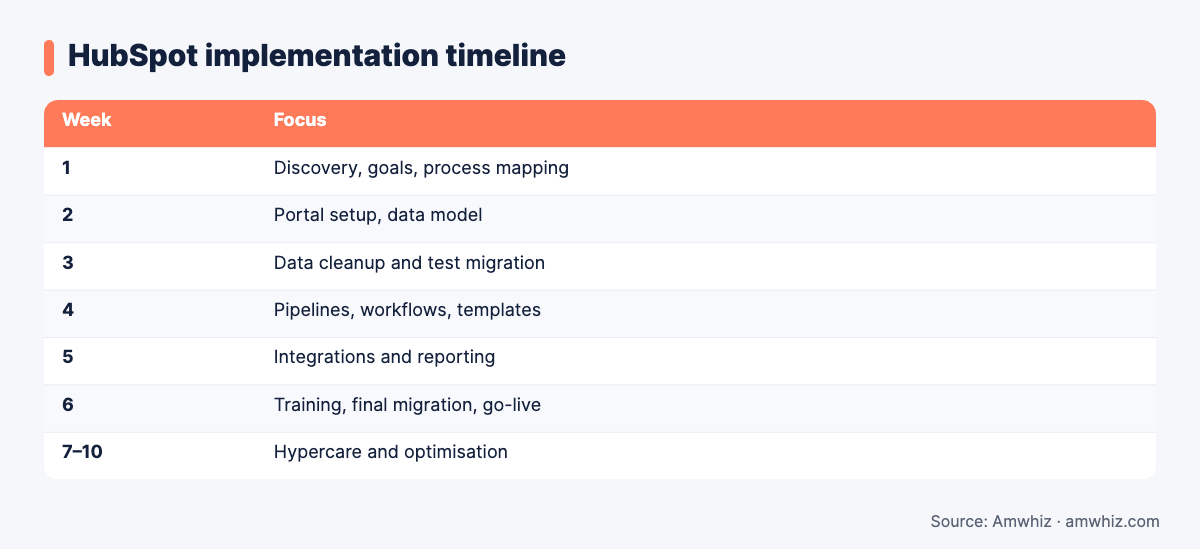
HubSpot implementation timeline
Common implementation mistakes
- Importing before designing properties. You end up with hundreds of unused fields.
- Copying the old CRM exactly. Old workarounds become new problems.
- Too many pipelines. Reps don't know where deals belong.
- No required fields. Reports become unreliable within weeks.
- Skipping training. Adoption drops and teams go back to spreadsheets.
- No owner after go-live. Portals decay without an admin.
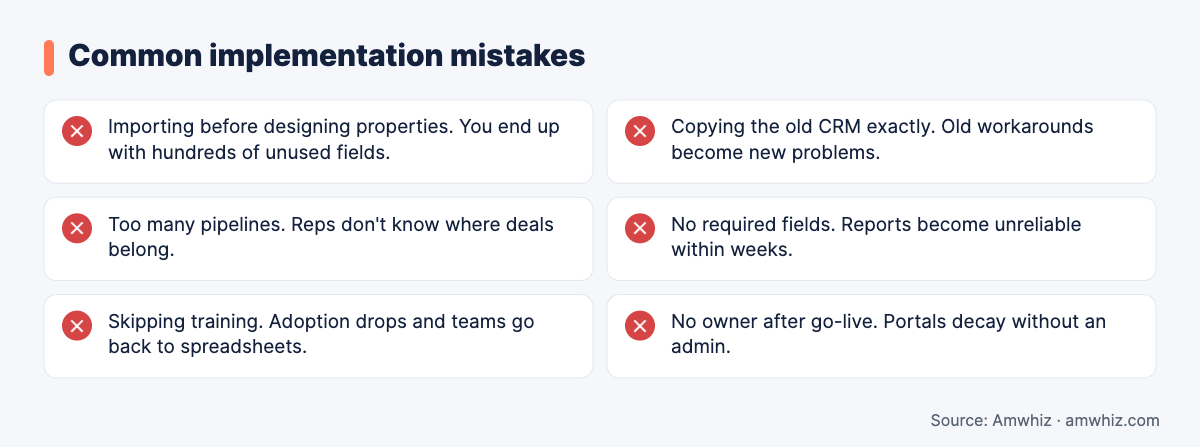
Common implementation mistakes
Should you implement HubSpot yourself or use a partner?
Self-implementation works for small teams using one hub with clean data and no integrations. A partner helps when you're migrating from another CRM, connecting accounting or ERP systems, or rolling out to several teams at once. Compare both in self-onboarding vs guided HubSpot onboarding.
Why choose Amwhiz for your HubSpot implementation?
As a HubSpot Diamond partner, Amwhiz runs this checklist on every project, with a named consultant and in-house developers for integrations. We specialise in connecting HubSpot to Zoho, Tally, Shopify, WhatsApp and ERPs, so your CRM reflects what's happening across the business.
Want help with this? Book a free implementation scoping call with the Amwhiz team.
Related guides
- How to Choose the Right HubSpot Partner for Your Implementation
- Zoho CRM Implementation Checklist for SMBs (With Timeline and Cost)
- CRM Data Migration Checklist: 25 Things to Fix Before You Switch Platforms
- HubSpot Duplicate Contacts: Why They Happen and How to Clean Them Up for Good
- HubSpot Partner in India for CRM, Marketing and Sales Automation
Frequently asked questions
How long does a HubSpot implementation take?
A single-hub implementation usually takes 3 to 6 weeks. Multi-hub projects with data migration and integrations typically take 6 to 12 weeks.
What should be done first in a HubSpot implementation?
Start with discovery: define goals, map your sales process and list data sources. Then design lifecycle stages and properties before importing any data.
What order should data be imported into HubSpot?
Import companies first, then contacts, deals and tickets, and finally activities such as notes, calls and emails. This keeps associations intact.
Do I need HubSpot Professional for automation?
Most workflow automation needs Professional. Starter includes simple automation, but branching workflows, sequences and advanced reporting require Professional or Enterprise.
What is hypercare in a HubSpot project?
Hypercare is the support period right after go-live, usually 2 to 4 weeks, where the partner fixes issues quickly and helps users adopt the new system.
Leave a comment
Your email address will not be published. Comments are reviewed before they appear.